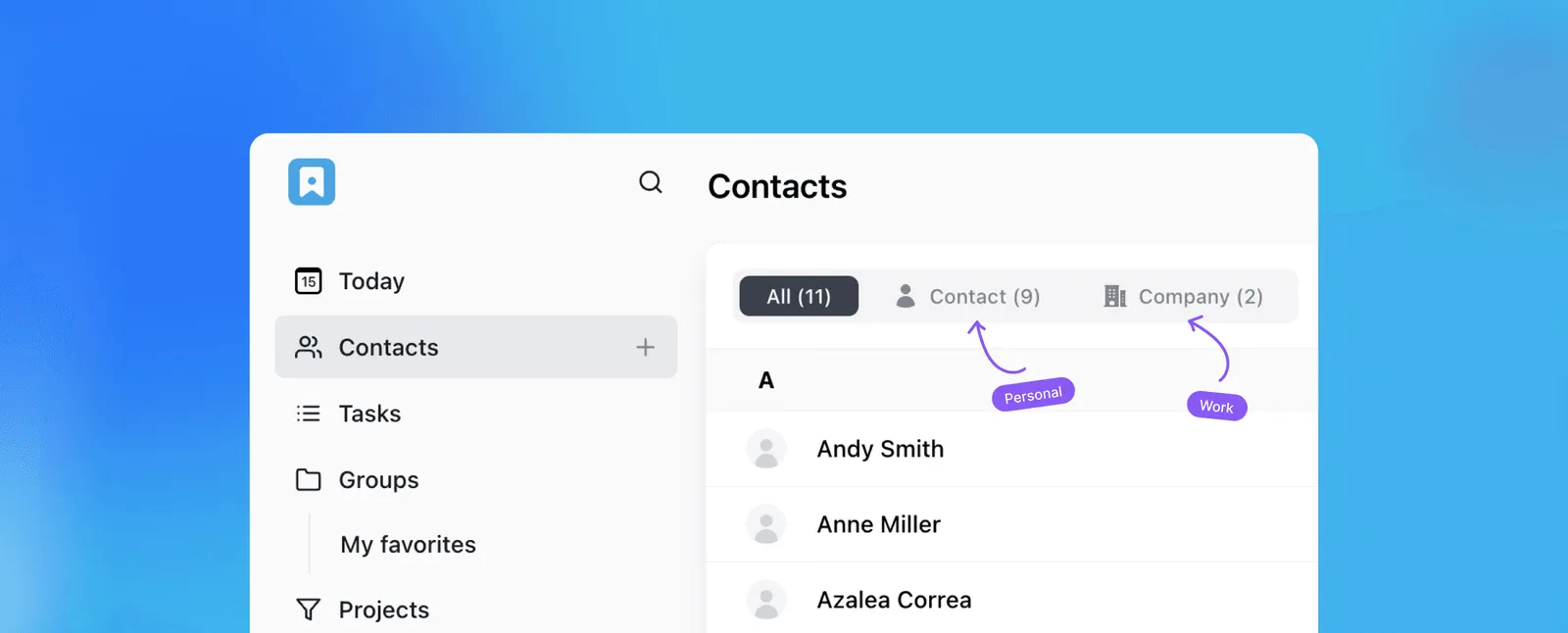
Most people manage personal and professional contacts in completely separate places. Work contacts live in a CRM or email. Personal contacts live in a phone. Neither system has the full picture, and moving between them takes more effort than it should.
The alternative is one place where everything lives, organized well enough that personal and professional contacts never feel mixed up even though they are in the same system. Here is how to set that up.
Step 1: Add your contacts
Start simple. For each person, add the basics: name, email, phone number, job title, and company. You do not need to fill in everything at once. A contact with a name and a phone number is already more useful than a name in your memory.
The habit that makes the difference is adding a short note when you create the contact. Where you met them, what they do, why they are in your network. Something like “met at industry event in March, works in operations” or “childhood friend, lives in Austin now.” Two sentences of context saves a lot of reconstruction later.
Step 2: Link contacts to companies
For professional contacts, connecting a person to their company record adds a layer of context that is hard to replicate any other way.
When a contact is linked to a company, you can see everyone at that organization in one view. If you work with three people at the same client, they are all connected. When the company changes something, you know which contacts are affected. When you want to reach out to an organization rather than an individual, you start at the company record and work from there.
This also helps when people move around. If someone leaves a company and joins another, you update their record and the connection updates with it.
Step 3: Use contact lists to separate personal and professional
A contact list is the simplest way to keep personal and professional contacts organized without keeping them in separate systems.
Create a few lists based on how you actually think about your contacts. Something like: Friends, Family, Clients, Colleagues, Network. A single contact can belong to more than one list, so someone who is both a friend and a professional connection sits in both without any duplication.
The practical benefit is speed. When you want to find a client, you filter by the Clients list. When you want to find someone from a past job, you filter by Colleagues. You are not scrolling through hundreds of names looking for the right person.
The more specific your lists, the more useful they become. Some people go broad (Personal, Professional), others go narrow (Family, Close Friends, Current Clients, Past Clients, Vendors). Start with whatever reflects how you actually think about your network and adjust from there.
Step 4: Create tasks directly on contacts
A task that is not attached to the person it belongs to is easy to lose. A reminder to follow up with a client sits in a general to-do list next to unrelated tasks and gets skipped. A task attached directly to the contact record is harder to miss.
Create tasks on the contact the moment a follow-up is needed. A deadline for sending a proposal. A reminder to check in after a meeting. A note to introduce two people who should know each other. Set a due date on each one. The task view filters by overdue, due today, and upcoming, so your follow-up list is always current without any extra work.
This applies to personal contacts too. A reminder to call someone on their birthday, to follow up on something a friend mentioned, to send a gift. The system does not distinguish between professional and personal. It just surfaces what needs attention when it needs attention.
Step 5: Use custom fields for what the defaults do not cover
Every contact system has a standard set of fields. Name, email, phone, company. For a lot of contacts, that is enough. For others, there is information you want to track that does not fit anywhere obvious.
Custom fields fill that gap. For professional contacts, you might add a field for the type of relationship (client, vendor, partner), the stage of a conversation, or the source of the introduction. For personal contacts, you might track a birthday, a preferred way to communicate, or something specific about how you know them.
The information you find yourself trying to remember every time you interact with someone is exactly the information that should be a field. Once it is captured in a structured way, it is searchable and filterable, not buried in a note somewhere.
Step 6: Keep notes for context
Notes are where the texture of a relationship lives. The things that do not fit in a field but matter when you interact with someone again. What you talked about last time. What they mentioned about their situation. What you said you would do.
Add a note after every meaningful interaction. It does not need to be long. A few sentences covering what was discussed and what comes next is enough. Over time, the notes build a history that makes every subsequent interaction more informed.
Full-text search across notes means you can find specific details across all your contacts without remembering exactly where you wrote them. If you remember someone mentioned a particular topic but cannot remember who, searching the notes finds it.
One tool that handles all of this in one place is Lattney. It offers a personal CRM with contacts, company records, contact lists, tasks, custom fields, and notes all included. No credit card required to start.