CAPTURE
Log work in seconds, not minutes
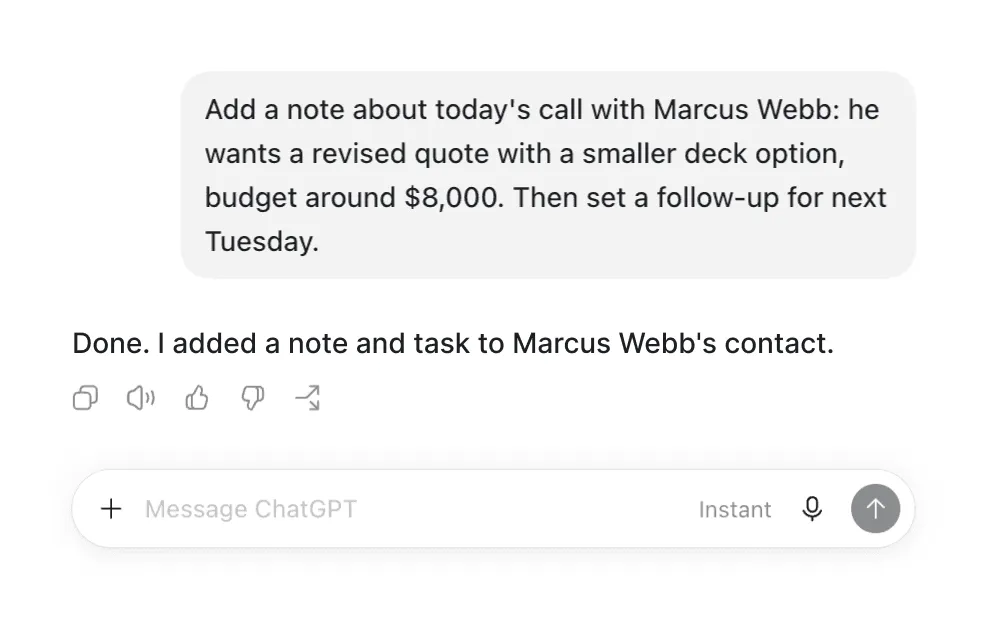
Turn a quick recap into a saved note and a follow-up task, both attached to the right contact automatically. No forms, no dropdowns, no switching tabs to log what just happened.
MCP
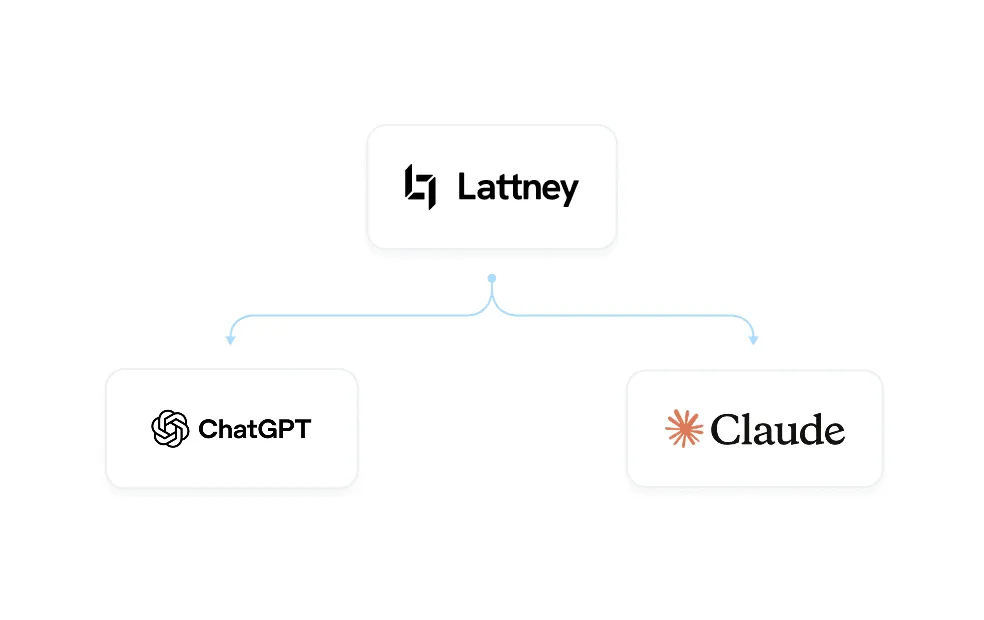
Connect Lattney to your Claude or ChatGPT account. Look up a client, log a note, or start a workflow and approve its next step. You choose what it's allowed to see and change.
CAPTURE
Turn a quick recap into a saved note and a follow-up task, both attached to the right contact automatically. No forms, no dropdowns, no switching tabs to log what just happened.
INSIGHTS
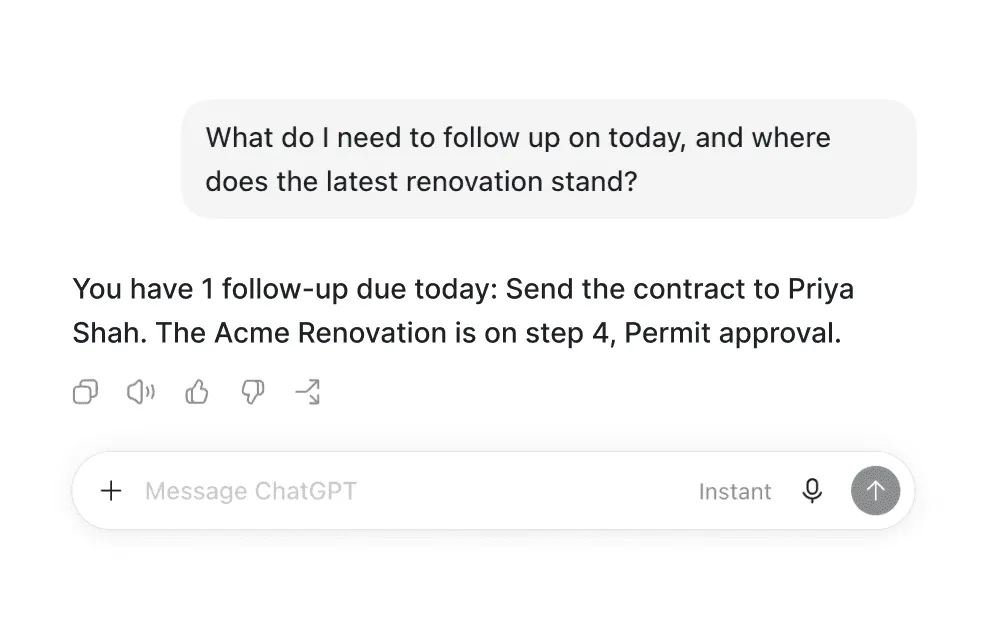
Get quick insights, stay on top of things, and never drop a follow-up again. Catch up on a client before a call, check where any job or process stands, and see what still needs your attention, one client or your whole day, all in one ask.
BULK ACTIONS
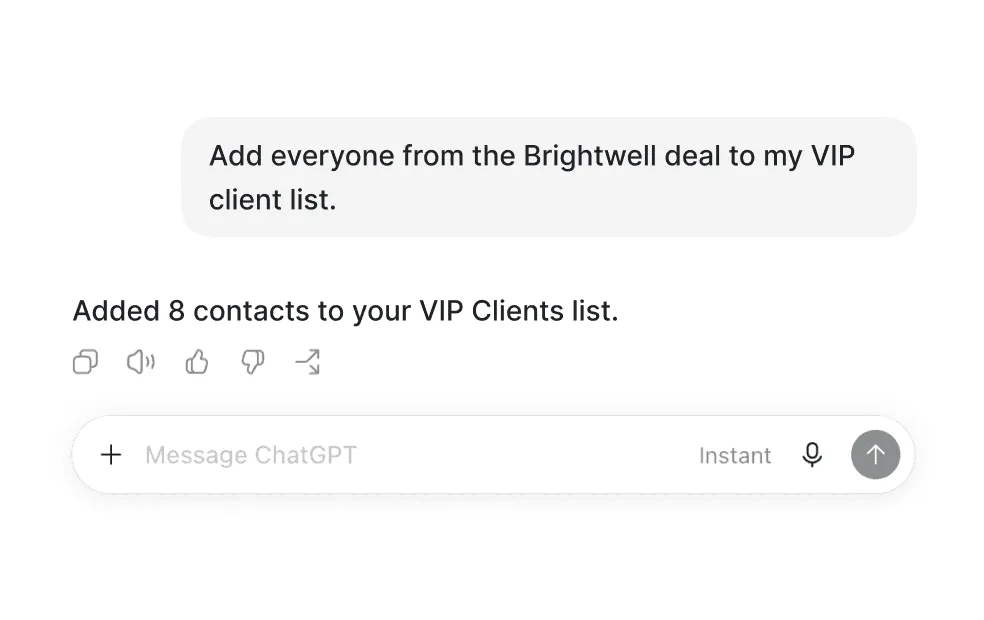
Instead of clicking through each contact one by one, add or remove people from a list, mark a batch of tasks complete, or update several contacts at once.
A definition
MCP (Model Context Protocol) works like a universal plug for AI assistants. MCP is what lets Claude and ChatGPT connect directly to apps like Lattney. Once it's connected, you can ask your assistant to look something up or get something done in Lattney the same way you'd ask a coworker.
Click here to learn how to connect Lattney to your favorite platform.
FAQs
Quick answers to questions about using Lattney's MCP.
In Claude or ChatGPT, open Settings, find Connectors (or Apps in ChatGPT), and add Lattney. Sign in, choose Read or Read + Write, and approve. It takes about a minute. Use our help center to learn step by step how to connect Lattney to your favorite AI.
No. If you can log into Lattney, you can connect it.
Yes. You sign in on Lattney's own approval screen, so your assistant never sees your password. It only gets the access level you approve, scoped to one account, and you can revoke it anytime from Settings → Applications.
Quite a bit. You can ask it to find a contact and see their open tasks, mark a call as done and check off the follow-up, remove someone from a list who didn't move forward, create a new contact right after a call, check a client's most recent activity, or update a note when something changes. If it's something you'd normally do in Lattney, there's a good chance you can just ask for it instead.
Yes. It's available on every Lattney plan, including the 14-day free trial.
No. Access is limited to your own role in that account. If you can't see something in Lattney, your assistant can't either.
Yes. Ask it to build a workflow or start from a template, add steps and questions, and start it for a client with their secure link. It can put someone on your team in charge of a step, and approve a step or send it back with a reason.
Just go in Claude or ChatGPT Settings → Applications → Revoke. It takes effect immediately.
Claude, Claude Code, and ChatGPT, plus any other MCP-compatible assistant. They all use the same connection.
Lattney is engineered with industry best practices. Security and privacy are a core feature.
WORKFLOWS + CRM